
To show a security: Simply begin typing the ticker symbol…
The securities dialog will open to receive the rest of your input. Finish typing the ticker symbol, then press (ENTER) or click the (OK) button. When loaded, the new security will replace the securities currently displayed in your VolEdge window. Separate multiple ticker symbols with commas.
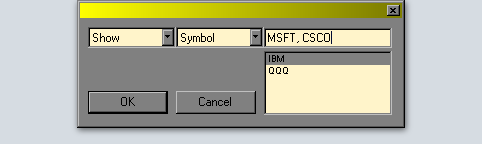
To add a security: Press the (+) key
The securities dialog will open to receive your input. Type the ticker symbol, then press (ENTER) or click the (OK) button. Using the pull-down menus on the dialog, you may choose to show the security (replace the currently displayed securities).
To find a security by name: Press the (?) key or (CTRL + F)
The securities dialog will open to receive your input. Enter at least part of the company’s name, then press (ENTER) or click the (OK) button. If a match is found, you will be prompted to either add or show the security (replace the currently displayed securities). If multiple matches are found, you will be prompted to select the best match, and again, whether to add or show the security.
NOTE: names or parts of names in the database may be abbreviated. Please consider this when selecting search terms.
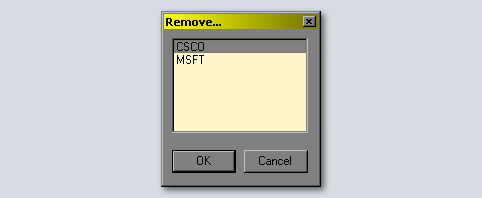
To remove a security: Press the (-) key
The securities removal dialog will open. Click on the ticker symbol you would like to remove, then press (ENTER) or click the (OK) button.