
When starting VolEdge, the previous two years’ data are displayed by default. To return to this state at any time, press ESCAPE, or click the  button.
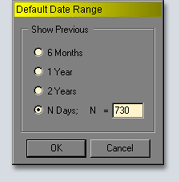
To modify this default range, use View -> Data Configuration -> Default Range … in the VolEdge menu. A dialog will be presented which allows the specification of the default data range, as seen above.
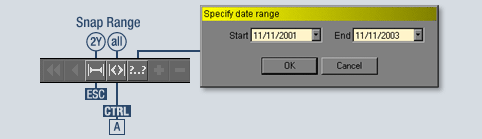
To View the entire available history for the currently displayed securities, press CTRL + A or click the  button.
If you would like to specify a date range explicitly, click the  button. You will be prompted for the start and end dates (as shown above).
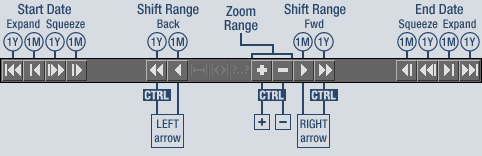
To move backward or forward through the available history while the amount of data displayed remains constant, press the ARROW keys on your keyboard, or click the 


 buttons. Holding the CTRL key while pressing the ARROWkeys on your keyboard will shift the graph in increments of one year; pressing theARROW keys on your keyboard alone will shift the graph in intervals of 30 days. Similarly, the buttons will shift the graph in increments of one year while the buttons will shift the graph in intervals of one month. Double arrows on control buttons always represent a movement or increment of one year, single arrows represent one month.
To zoom the date range symmetrically, click the button. The graph will show approximately 20% less data while maintaining the current center point. To zoom out, click the
 button.
To include more data in the graph by expanding the start date, click the or
or button. This will expand the start by one year or one month, respectively. To include less data in the graph by squeezing the start date, click the
 or
or button. To squeeze or expand the end date, use the corresponding
 buttons on the right-hand side of the control bar. Remember, double arrows on control buttons always represent an increment of one year, single arrows represent one month.
 To quickly zoom in on either the date or value ranges, drag the mouse in the main charting area.
Dragging the mouse horizontally will cause the graph to be zoomed into the date range specified by the start and end points of the drag operation.
Dragging the mouse vertically will cause the graph to be zoomed into the value range specified by the start and end points of the drag operation. The price and volatility ranges will be modified simultaneously.
To snap to the default range, press ESC, or click
NOTE: drag as close to horizontal or vertical as possible. This is especially important if you are dragging into a narrow area; the application will switch from horizontal to vertical once the 45 degree line is crossed.
